Tracking Your Continuing Education (CE) with Asset TV
Every video you watch on Asset TV is automatically added to your CE profile, making it simple to keep tabs on your learning. From your CE profile, you can:
- Complete an associated quiz (if applicable)
- Add non Asset TV CE activities (conference attendance, reading etc)
- Filter your CE history to show the most appropriate results
- Export your CE data to PDF or CSV for easy record-keeping
You can access your CE profile by visiting your dashboard and then selecting "CE Statement"
Info
For your convenience, we've segmented your video views into Accredited and Unaccredited categories. Videos marked 'Accredited' typically have an associated quiz. However, remember it's up to you to determine the appropriate CE classification for your specific needs.
Your CE Activities
Videos you watch on Asset TV are automatically added to your activity history, including how much of each video you've viewed.
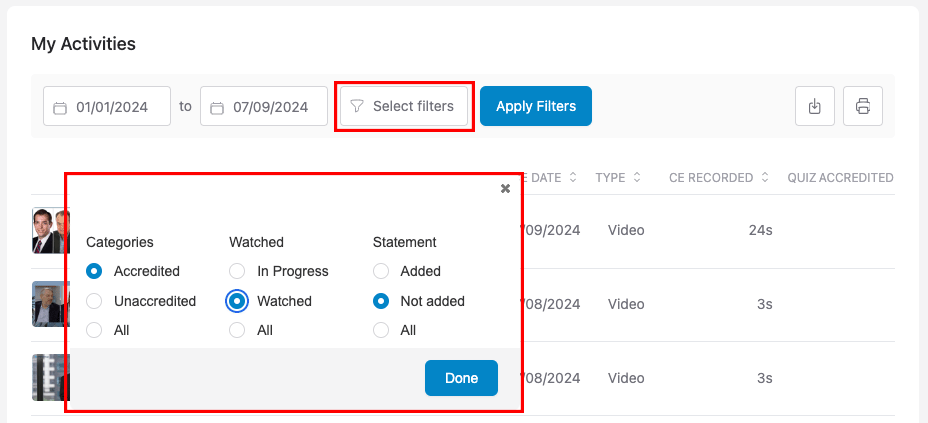
You can also easily filter your activities list by type. This allows you to show just Accredited or Unaccredited content, or content you've watched in full versus content still to be completed.
Setting Targets
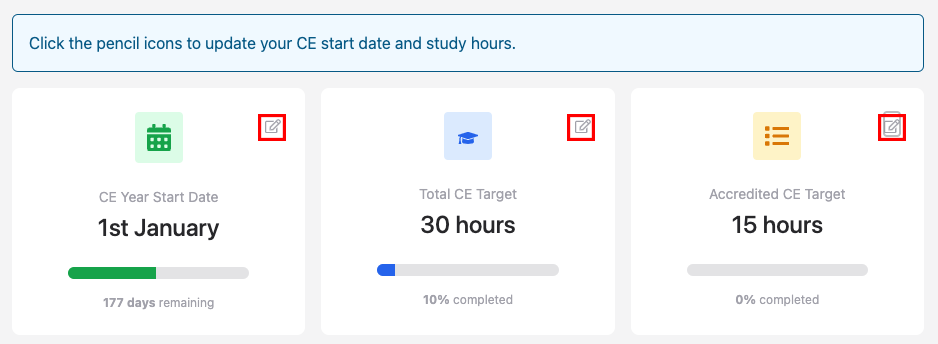
On the My Learning page, you can set your own personal CE targets, along with your start and end dates for the current period. This helps you stay on track with your professional development goals.
Track your progress relative to your peers
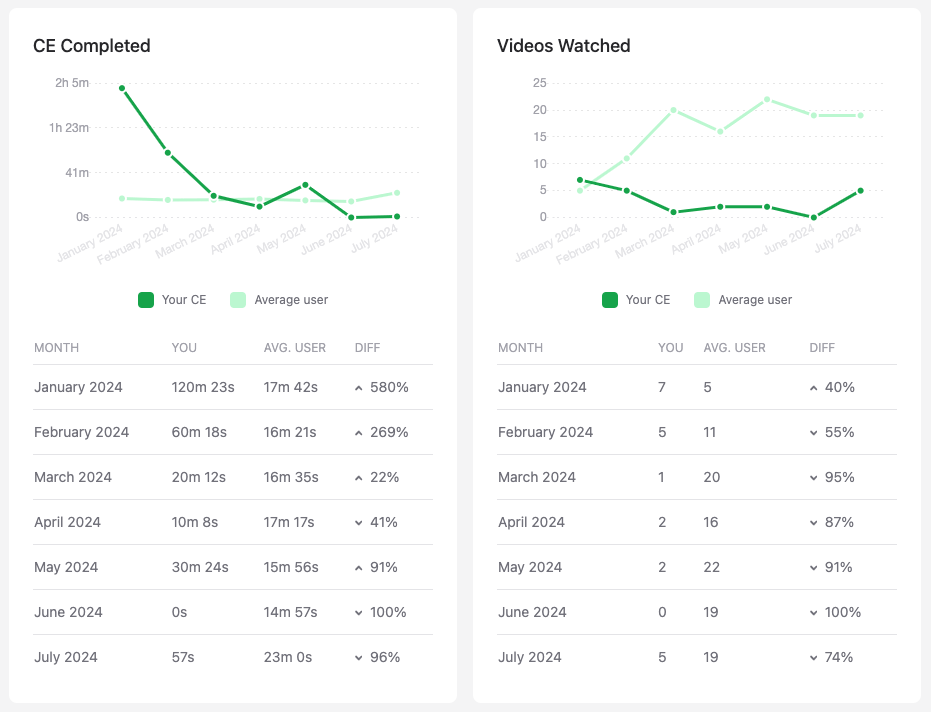
Your Analytics page features helpful charts that break down your CE learning by type and even show your progress relative to other users.
Tracking off-platform activities
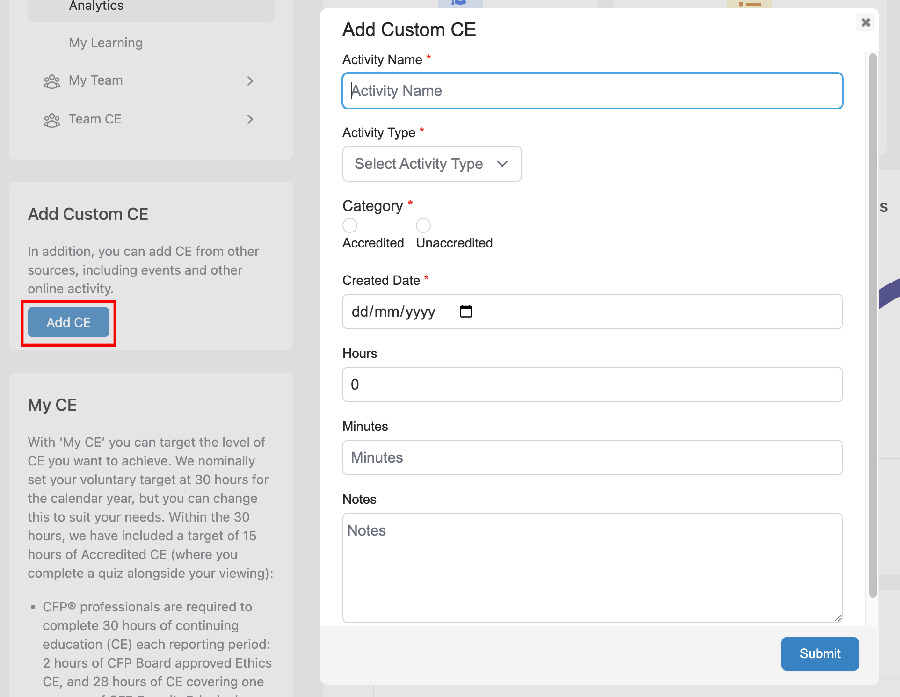
It's also possible to track CE activities you've completed outside of Asset TV. From any of your CE pages, select the blue "Add CE" button on the left side of the screen and fill out the form.